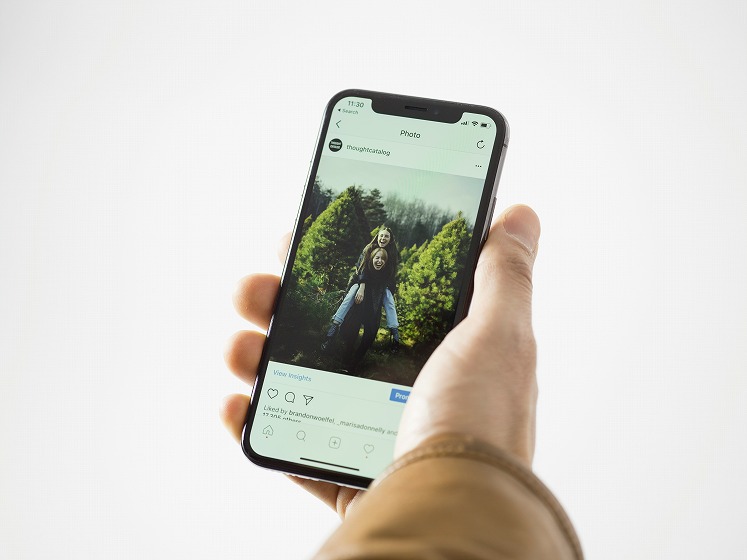
Instagram Switched to English? Easy Guide to Change Back to Japanese [iPhone & Android Compatible]

Updated on 2026-03-19

Understand English and Japanese at the Same Time

One-click bilingual Instagram display

Instagram Switched to English? Easy Guide to Change Back to Japanese

When using Instagram, the interface may temporarily switch to English. Especially when only the Activity section becomes English, it becomes inconvenient and harder to navigate.

So in this article, we explain how to deal with Instagram switching to English. We cover both iPhone and Android, so please use this as a reference.

If Instagram Switches to English, Try Deeptranslate

Portrait reference: Deeptranslate

When Instagram suddenly switches to English, many people feel confused and unable to use it as usual. Translating the screen every time can be stressful.

That's why we recommend "Deeptranslate," a Google Chrome extension. Deeptranslate is a tool that uses AI to translate pages for free, so you can use Instagram normally even when it switches to English.

It's easy to use—just set your native language to "Japanese" during installation. After that, simply press "ALT+A" when it switches to English, and it will automatically translate. There's no need to manually select the target language or click on individual elements.

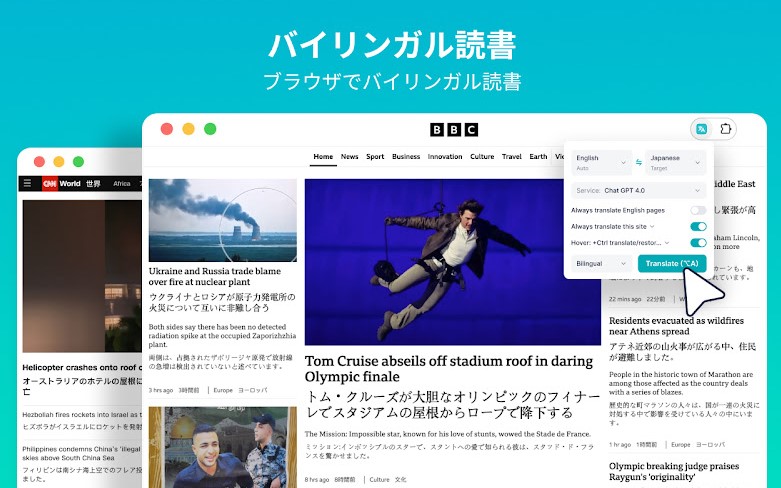
Screen showing bilingual display of Instagram post translation by DeepTranslate

Also, as shown in the image, the display is in bilingual format, which is appealing for language study. By viewing Instagram while comparing with the original language, you can of course connect with people overseas, and it's also helpful for learning English.

It's a tool only available for the PC version, but it works outside of Instagram too, so if you're struggling with English, please give it a try.

How to Fix When the Instagram App Switches to English

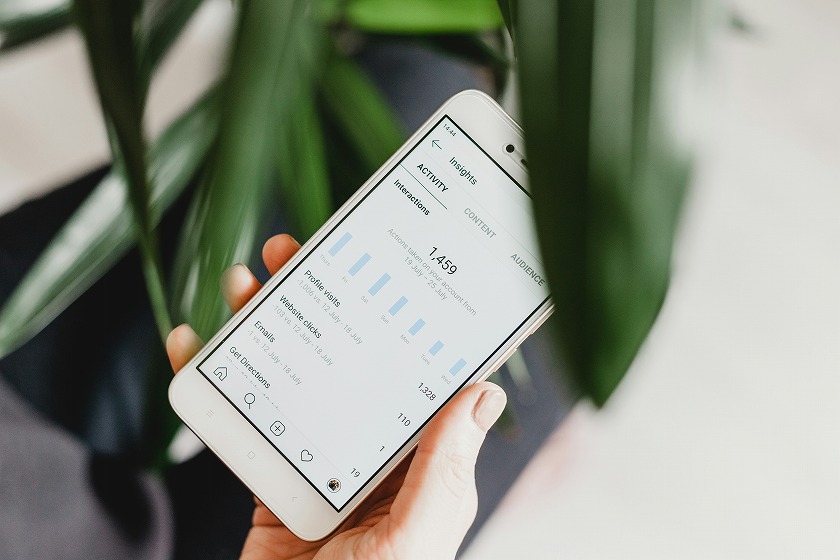
Screenshot showing Instagram account insights screen

When the Instagram app switches to English, the solutions differ between iPhone and Android. Let's look at each in detail.

iOS Instagram Settings

Photo of Instagram account profile screen

For the iOS version of Instagram installed on iPhone, follow the steps below.

After following the steps above, it should be back in Japanese. If it remains in English, try the method introduced in the next section.

Android Instagram Settings

Photo of Instagram account profile screen

For the Android version of Instagram, please follow the steps below.

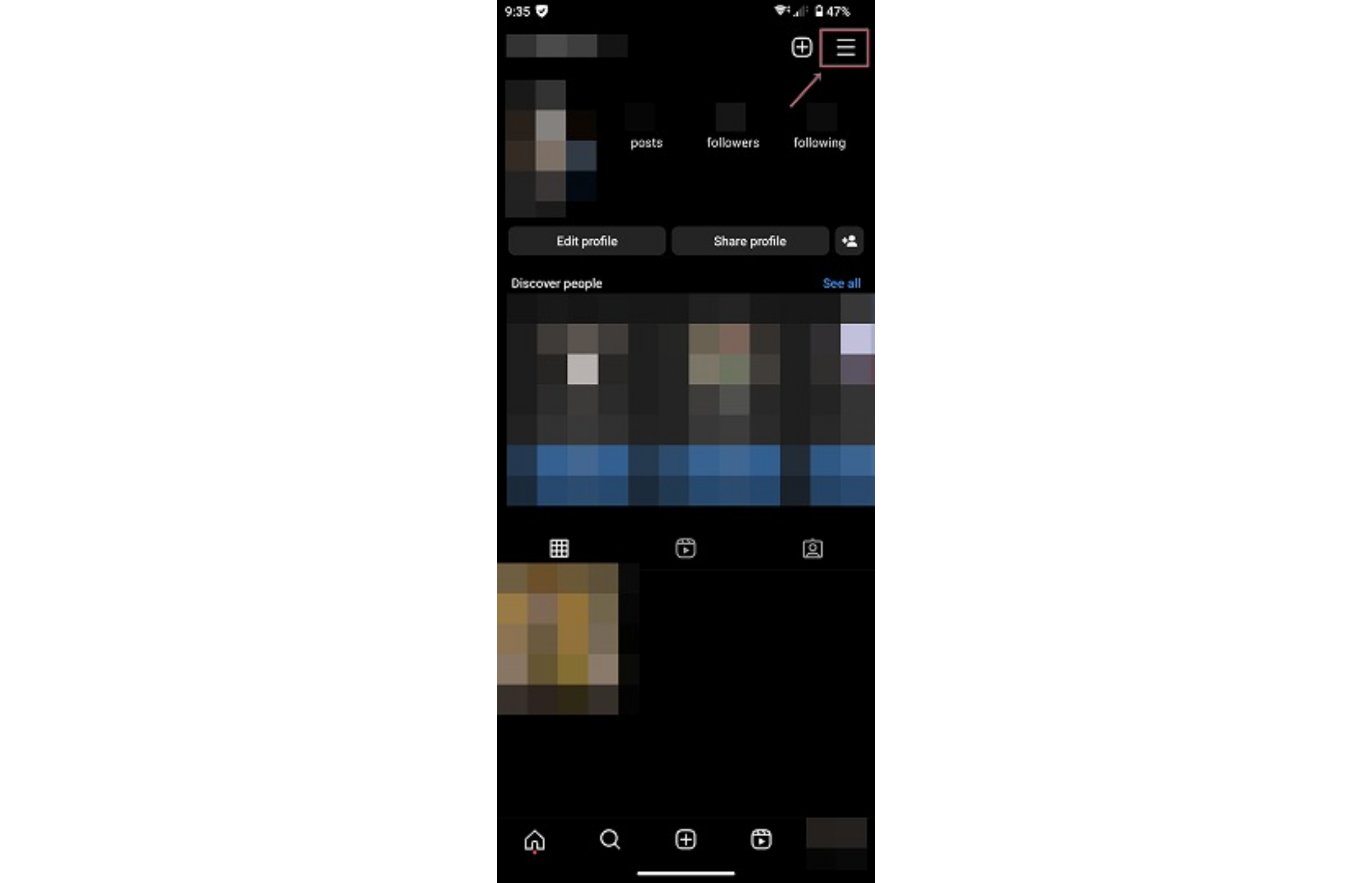
1. Tap the "≡" in the top right of the app

Android Instagram Settings: Tap the "≡" in the top right of the app

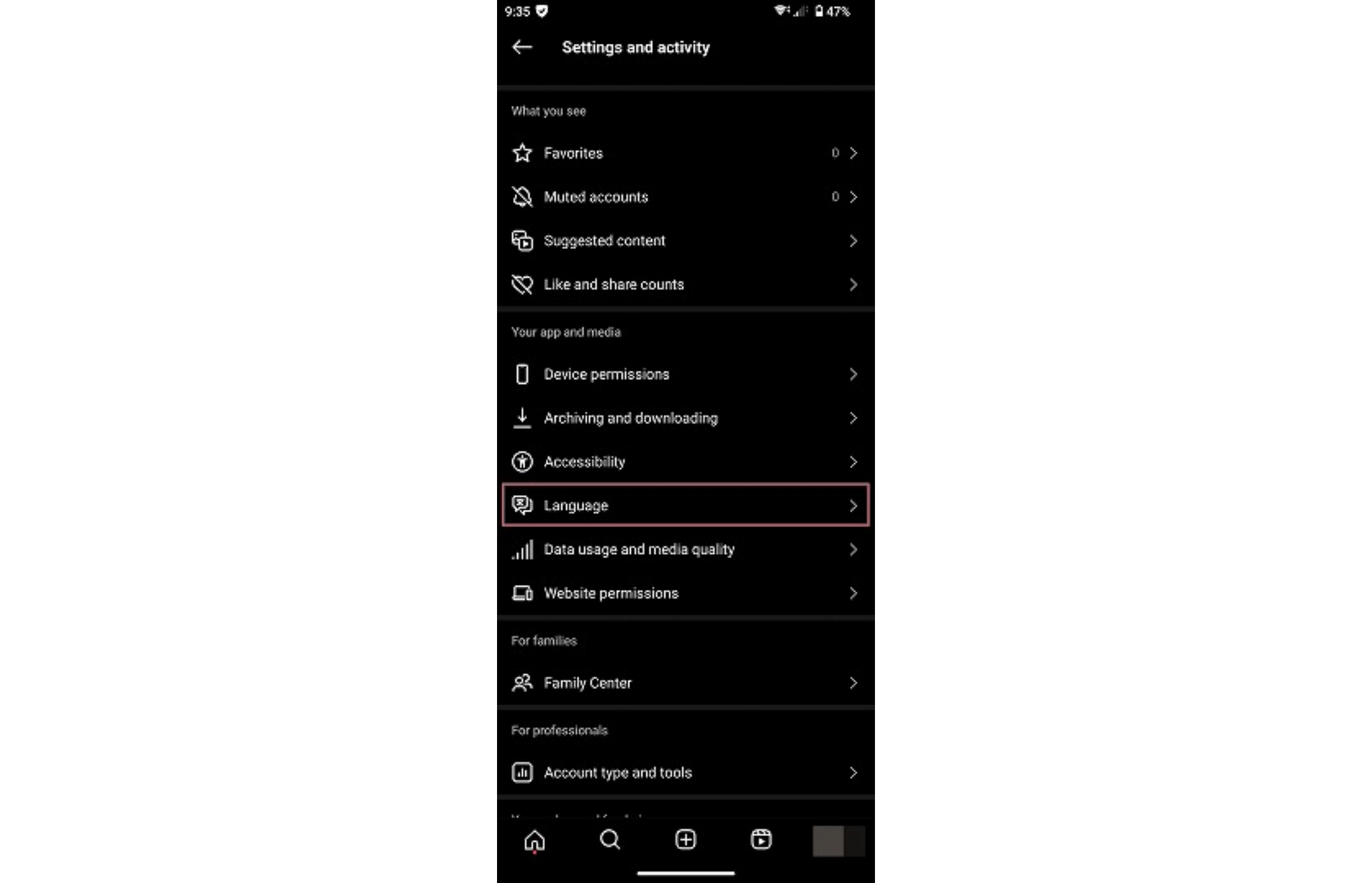
2. Select "Language"

Android Instagram Settings: Select "Language"

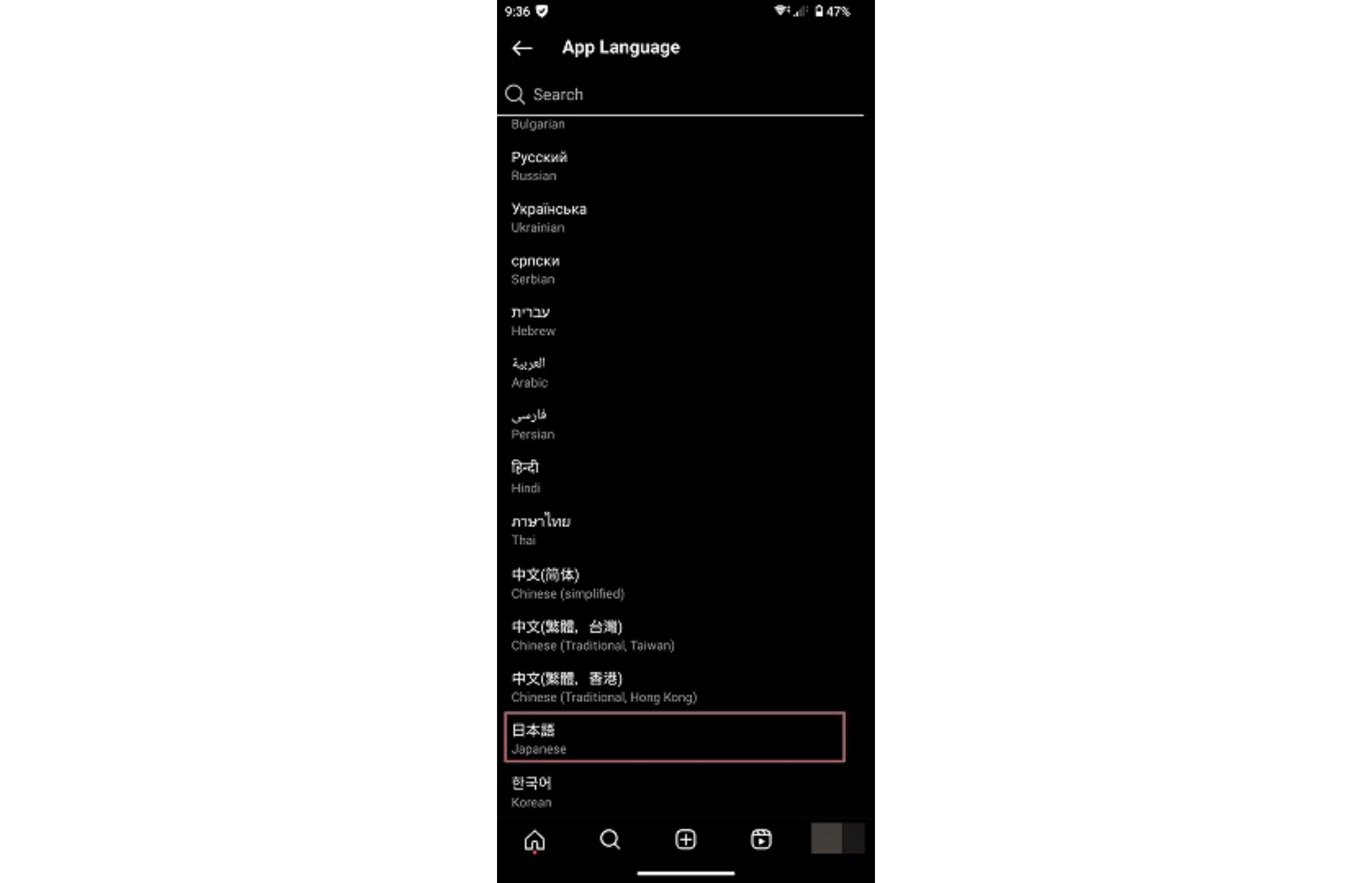
3. Scroll down and select "Japanese"

Scroll down and select "Japanese"

When you select Japanese, the page will automatically return. At this point, if Japanese is displayed, it's successfully completed. If it hasn't changed, try the method introduced in the next section.

6 Solutions When It Won't Change from English to Japanese

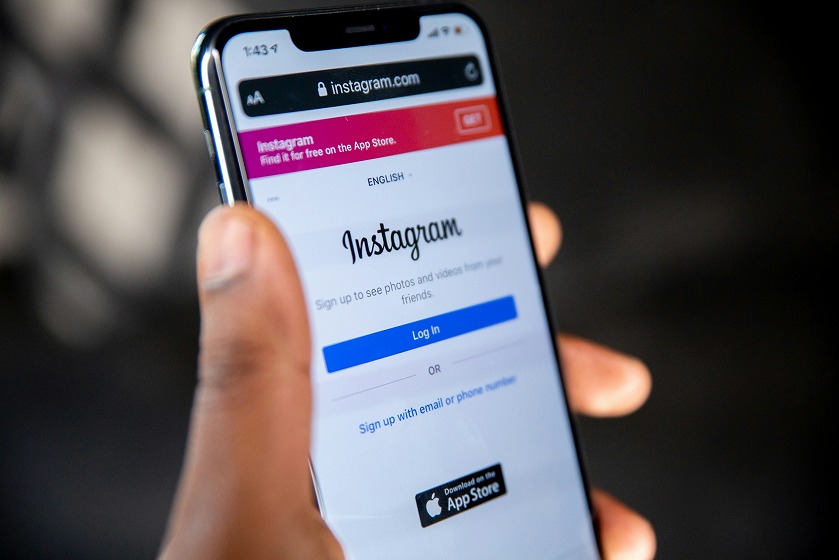
Screenshot showing Instagram login screen

If the settings introduced earlier don't work to change it to Japanese, try the following methods.

Update App and Device OS to Latest Version

First, update the Instagram app and device OS to the latest version. The device OS usually updates automatically, but the app is often forgotten, so be careful.

For iPhone, search for Instagram in "App Store"; for Google, use "Google Play" and check if it's the latest version.

Restart the Instagram App

If there are no issues with the app and OS, next restart the Instagram app. Errors in apps and devices are likely to be fixed by restarting, so swipe to completely close it.

Restart Your Device

If restarting the app doesn't fix the English display, the device may be affecting it, so try restarting your smartphone.

It's recommended to restart your smartphone once a week. Something may be interfering with normal use, so restart to clean up the device information.

Re-login to Your Instagram Account

If restarting the device doesn't restore it, try re-logging into your Instagram account.

At this time, if you log out while keeping your account information saved, you can smoothly re-login.

Reinstall the App

If re-logging doesn't fix it, reinstall the app. Continued use of the app can cause cache buildup that may interfere with app settings.

When you delete the app, the cache is also deleted, so reinstalling and re-logging may fix it.

Data won't be deleted like with account deletion, so you can safely delete the app.

Wait for the Error to Be Resolved

There are cases where some error is occurring on Instagram's side. In that case, you just have to wait for the error to be resolved.

Since it's an error affecting the entire system, it's a good idea to check using SNS like X (Twitter). If many people are experiencing the same symptoms, it's likely an error on Instagram's side.

Handle Instagram Switching to English Without Panic

Photo of Instagram home screen captured on smartphone

Instagram switching to English is a common error you may encounter while using it. In such cases, don't panic and try the methods introduced in this article.

If you're using the PC version of Instagram, try installing Deeptranslate as an extension. Since AI translates for you, you can use Instagram in Japanese.

It's free to use, so if you're interested, please give it a try.

Choose and download the browser plugin that suits your best.

logoDeepTranslate

© 2024 DeepTranslate All rights reserved